Docker Setup for NVIDIA GPU and CUDA: A Complete Guide
Introduction
Running GPU-accelerated workloads in Docker containers is increasingly common for machine learning, scientific computing, and data processing. However, the setup requires careful coordination between Docker, the NVIDIA driver, CUDA toolkit, and the nvidia-container-toolkit. In this post, I’ll walk through a complete setup from scratch, including the common pitfalls I encountered and how to avoid them.
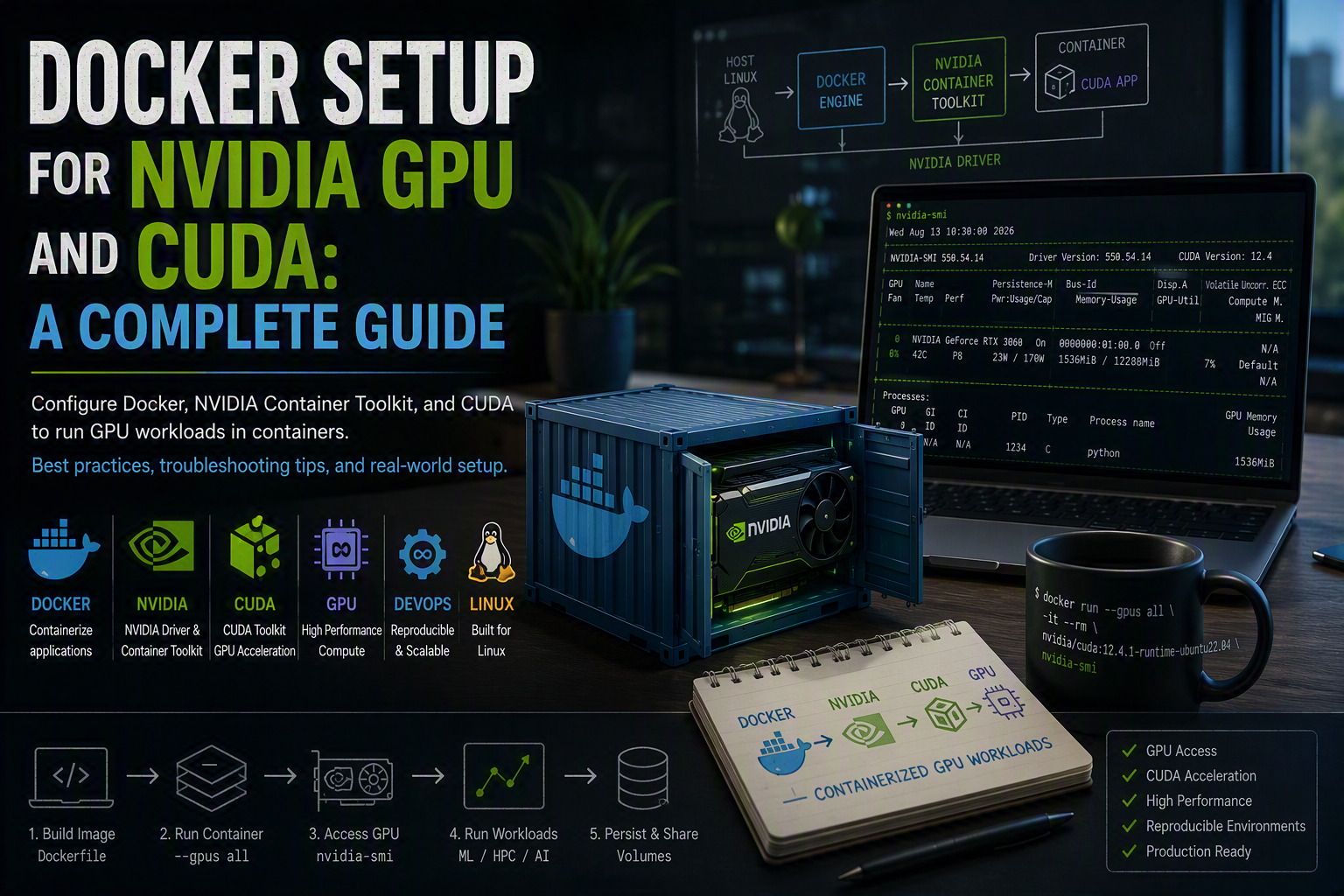
System Information
This guide is based on a real setup with: - OS: Ubuntu 26.04 LTS (resolute) - GPU: NVIDIA Quadro T1000 with Max-Q - NVIDIA Driver: 595.84 - CUDA Version: 13.2 - Docker: 29.7.2
Part 1: Initial Setup and Docker Installation
Prerequisites
Before starting, ensure you have: - sudo access - A Python virtual environment (optional but recommended) - System packages updated
# Activate your Python virtualenv (optional)
source /path/to/venv/bin/activate

# Update system packages
sudo apt update
sudo apt upgrade -y
sudo apt install -y ca-certificates curl gnupg lsb-release
Adding Docker Repository
Docker must be installed from the official repository. Here’s where I made my first mistake:
❌ WRONG: Using shell variable expansion in a quoted echo command:
# DON'T do this - the variable won't expand!
echo "deb [arch=$(dpkg --print-architecture) signed-by=/etc/apt/keyrings/docker.asc] \
  https://download.docker.com/linux/ubuntu ${UBUNTU_CODENAME} stable" | \
  sudo tee /etc/apt/sources.list.d/docker.list
If you make a typo or the variable isn’t set, you’ll end up with a literal string like 4{UBUNTU_CODENAME:-resolute} in your sources file, causing:
Error: The repository 'https://download.docker.com/linux/ubuntu 4{UBUNTU_CODENAME:-resolute} Release'
does not have a Release file.
[404  Not Found]
✅ CORRECT: Use the explicit codename:
# Set up Docker keyring
sudo install -m 0755 -d /etc/apt/keyrings
sudo curl -fsSL https://download.docker.com/linux/ubuntu/gpg -o /etc/apt/keyrings/docker.asc
sudo chmod a+r /etc/apt/keyrings/docker.asc

# Add repository with explicit codename (use your release: jammy, focal, resolute, etc.)
CODENAME="resolute"
ARCH="$(dpkg --print-architecture)"
echo "deb [arch=${ARCH} signed-by=/etc/apt/keyrings/docker.asc] \
  https://download.docker.com/linux/ubuntu ${CODENAME} stable" | \
  sudo tee /etc/apt/sources.list.d/docker.list > /dev/null

# Verify the file looks correct
sudo cat /etc/apt/sources.list.d/docker.list
Install Docker Packages
sudo apt update
sudo apt install -y docker-ce docker-ce-cli containerd.io \
  docker-buildx-plugin docker-compose-plugin
Enable and Test Docker
# Enable Docker to start at boot
sudo systemctl enable --now docker

# Quick test
sudo docker run hello-world
Part 2: Managing Docker Permissions
Running docker without sudo requires membership in the docker group. Here’s how to set it up properly:
Add User to Docker Group
sudo usermod -aG docker "$USER"Important: This change takes effect at the next login. You have two options:
Option 1: Log out and log back in (recommended for production)
# Log out and log back in
exit
# SSH back in or use your terminal
Option 2: Apply immediately in current session
newgrp docker
# Verify
id  # should show docker in your groups
Verify Docker Socket Permissions
# Check socket ownership
ls -l /var/run/docker.sock
# Should show: srw-rw---- 1 root docker

# Verify you can use docker without sudo
docker version
docker run hello-world
Part 3: NVIDIA Container Toolkit Setup
The NVIDIA container toolkit enables Docker to access the host’s GPU. This is the trickiest part of the setup.
Download NVIDIA Keys and Add Repository
# Download and install NVIDIA keyring
sudo curl -fsSL https://nvidia.github.io/libnvidia-container/gpgkey | \
  sudo gpg --dearmor -o /usr/share/keyrings/nvidia-container-toolkit-keyring.gpg
sudo chmod a+r /usr/share/keyrings/nvidia-container-toolkit-keyring.gpg

# Add NVIDIA repository with proper signed-by declaration
NVIDIA_KEYRING="/usr/share/keyrings/nvidia-container-toolkit-keyring.gpg"
curl -s -L https://nvidia.github.io/libnvidia-container/stable/deb/nvidia-container-toolkit.list | \
  sed "s#deb https://#deb [signed-by=${NVIDIA_KEYRING}] https://#g" | \
  sudo tee /etc/apt/sources.list.d/nvidia-container-toolkit.list > /dev/null
Handle Architecture Placeholders
Some NVIDIA repo files contain $(ARCH) which needs to be replaced:
# Check if your file has it
sudo cat /etc/apt/sources.list.d/nvidia-container-toolkit.list

# Replace if needed
ARCH="$(dpkg --print-architecture)"
sudo sed -i "s|\$(ARCH)|${ARCH}|g" /etc/apt/sources.list.d/nvidia-container-toolkit.list
Install NVIDIA Container Toolkit
sudo apt update
sudo apt install -y nvidia-container-toolkit

# Configure Docker to use NVIDIA runtime
sudo nvidia-ctk runtime configure --runtime=docker

# Restart Docker for changes to take effect
sudo systemctl restart docker
What this does: - Installs the nvidia-container-toolkit and nvidia-ctk CLI - Modifies /etc/docker/daemon.json to register the NVIDIA runtime - Enables the --gpus flag in docker run commands
Part 4: Verify GPU Access
Check Host GPU
First, verify your host can see the GPU:
nvidia-smiExpected output:
Thu Aug 13 04:29:39 2026
+-----------------------------------------------------------------------------------------+
| NVIDIA-SMI 595.84                 Driver Version: 595.84         CUDA Version: 13.2     |
+-----------------------------------------+------------------------+----------------------+
| GPU  Name                 Persistence-M | Bus-Id          Disp.A | Volatile Uncorr. ECC |
|   0  Quadro T1000 with Max-Q ...    Off |   00000000:01:00.0 Off |                  N/A |
| N/A   37C    P8              2W /   35W |       1MiB /   4096MiB |      0%      Default |
+-----------------------------------------------------------------------------------------+
Test GPU Inside Container
Now test GPU access from a Docker container:
# Choose a CUDA image matching your driver's CUDA version
# Your driver supports CUDA 13.2, so use an image with CUDA 13.2
docker run --rm --gpus all nvidia/cuda:13.2.0-runtime-ubuntu24.04 nvidia-smi
Expected output: Same GPU info from inside the container, confirming GPU passthrough works.
Part 5: Choosing the Right CUDA Image
NVIDIA publishes CUDA images in three variants:
| Image Type | When to Use | Size | Contains |
|---|---|---|---|
base |
Minimal, GPU driver only | ~1GB | Runtime libs only |
runtime |
Running GPU workloads | ~4GB | CUDA runtime (no compiler) |
devel |
Building CUDA code | ~10GB | Full CUDA toolkit, nvcc, headers |
Compatibility rule: Your driver reports CUDA version 13.2. Use containers built for CUDA 13.2 or earlier.
# For running ML models/apps (recommended for most users)
docker run --rm --gpus all \
  nvidia/cuda:13.2.0-runtime-ubuntu24.04 \
  nvidia-smi

# For compiling CUDA code
docker run --rm --gpus all -it \
  nvidia/cuda:13.2.0-devel-ubuntu24.04 \
  nvcc --version

# Minimal base image (for custom builds)
docker run --rm --gpus all \
  nvidia/cuda:13.2.0-base-ubuntu24.04 \
  nvidia-smi
If a specific tag doesn’t exist, check available tags:
curl -s "https://registry.hub.docker.com/v2/repositories/nvidia/cuda/tags?page_size=100" | \
  jq -r '.results[].name' | grep '^13'
Part 6: Complete Setup Script
Here’s a cleaned, minimal script for a fresh installation. Save as setup-docker-nvidia.sh:
#!/usr/bin/env bash
set -euo pipefail

# Minimal, corrected script to install Docker and NVIDIA container toolkit
# Usage: chmod +x setup-docker-nvidia.sh && ./setup-docker-nvidia.sh

CODENAME="resolute"  # Change to your Ubuntu release (jammy, focal, etc.)
ARCH="$(dpkg --print-architecture)"
DOCKER_KEYRING="/etc/apt/keyrings/docker.asc"
NVIDIA_KEYRING="/usr/share/keyrings/nvidia-container-toolkit-keyring.gpg"

echo "=== Docker + NVIDIA Container Toolkit Setup ==="
echo "Codename: $CODENAME | Architecture: $ARCH"

# 1. System update and prerequisites
echo "[1/9] Updating system packages..."
sudo apt update
sudo apt upgrade -y
sudo apt install -y ca-certificates curl gnupg lsb-release

# 2. Docker: add keyring and repository
echo "[2/9] Setting up Docker keyring..."
sudo install -m 0755 -d /etc/apt/keyrings
sudo curl -fsSL https://download.docker.com/linux/ubuntu/gpg -o "${DOCKER_KEYRING}"
sudo chmod a+r "${DOCKER_KEYRING}"

echo "[3/9] Adding Docker repository..."
echo "deb [arch=${ARCH} signed-by=${DOCKER_KEYRING}] https://download.docker.com/linux/ubuntu ${CODENAME} stable" | \
  sudo tee /etc/apt/sources.list.d/docker.list > /dev/null

# 3. Update and install Docker
echo "[4/9] Installing Docker packages..."
sudo apt update
sudo apt install -y docker-ce docker-ce-cli containerd.io \
  docker-buildx-plugin docker-compose-plugin

# 4. Add user to docker group
echo "[5/9] Adding user to docker group..."
sudo usermod -aG docker "$USER"

# 5. Enable and start Docker
echo "[6/9] Enabling Docker service..."
sudo systemctl enable --now docker

# 6. NVIDIA container toolkit
echo "[7/9] Setting up NVIDIA container toolkit keyring..."
sudo curl -fsSL https://nvidia.github.io/libnvidia-container/gpgkey | \
  sudo gpg --dearmor -o "${NVIDIA_KEYRING}"
sudo chmod a+r "${NVIDIA_KEYRING}"

echo "[8/9] Adding NVIDIA repository..."
curl -s -L https://nvidia.github.io/libnvidia-container/stable/deb/nvidia-container-toolkit.list | \
  sed "s#deb https://#deb [signed-by=${NVIDIA_KEYRING}] https://#g" | \
  sudo tee /etc/apt/sources.list.d/nvidia-container-toolkit.list > /dev/null

# Replace $(ARCH) placeholder
sudo sed -i "s|\$(ARCH)|${ARCH}|g" /etc/apt/sources.list.d/nvidia-container-toolkit.list

# 7. Install and configure NVIDIA toolkit
echo "[9/9] Installing NVIDIA container toolkit..."
sudo apt update
sudo apt install -y nvidia-container-toolkit
sudo nvidia-ctk runtime configure --runtime=docker
sudo systemctl restart docker

# 8. Test
echo ""
echo "=== Testing Setup ==="
echo "Docker version:"
docker version --format 'Client: {{.Client.Version}} | Server: {{.Server.Version}}'

echo ""
echo "Testing GPU access..."
docker run --rm --gpus all nvidia/cuda:13.2.0-runtime-ubuntu24.04 nvidia-smi

echo ""
echo "✓ Setup complete!"
echo "Note: Your user is now in the docker group."
echo "      Log out and back in (or run 'newgrp docker') to apply the change."
Run it:
chmod +x setup-docker-nvidia.sh
./setup-docker-nvidia.sh
Troubleshooting Guide
Issue: permission denied while trying to connect to the docker API
Cause: User not in docker group or group membership not applied to current session.
Solution:
# Check current groups
id

# If docker is missing, apply group membership immediately
newgrp docker

# Or log out and log back in
Issue: Docker repository 404 error
Cause: Malformed sources file (literal variable expansion, wrong codename, etc.)
Solution:
# Inspect the file
sudo cat /etc/apt/sources.list.d/docker.list

# Fix with explicit codename
echo "deb [arch=$(dpkg --print-architecture) signed-by=/etc/apt/keyrings/docker.asc] \
  https://download.docker.com/linux/ubuntu resolute stable" | \
  sudo tee /etc/apt/sources.list.d/docker.list

# Update
sudo apt update
Issue: docker run --gpus all fails with could not select device driver
Cause: NVIDIA runtime not configured or Docker not restarted.
Solution:
# Verify nvidia-ctk configuration
sudo cat /etc/docker/daemon.json | grep -A 5 nvidia

# Restart Docker
sudo systemctl restart docker

# Test again
docker run --rm --gpus all nvidia/cuda:13.2.0-runtime-ubuntu24.04 nvidia-smi
Issue: CUDA image tag not found
Cause: Invalid or unavailable tag.
Solution:
# Check available tags
curl -s "https://registry.hub.docker.com/v2/repositories/nvidia/cuda/tags?page_size=100" | \
  jq -r '.results[].name'

# Use a valid tag matching your CUDA version
docker run --rm --gpus all nvidia/cuda:13.2.0-runtime-ubuntu22.04 nvidia-smi
Issue: Duplicate CUDA APT source warnings
Cause: Multiple CUDA repos configured for the same release.
Solution:
# List CUDA repos
ls /etc/apt/sources.list.d | grep -i cuda

# Remove duplicates (inspect first!)
sudo rm /etc/apt/sources.list.d/<duplicate>.list

# Update
sudo apt update
Running Containers at Boot (Optional)
To start Docker containers automatically after reboot, create a systemd service:
# System-wide service (runs as root)
sudo tee /etc/systemd/system/my-container.service > /dev/null <<'EOF'
[Unit]
Description=My Docker Container
After=docker.service
Requires=docker.service

[Service]
Restart=always
ExecStart=/usr/bin/docker run --rm --name my-container \
  --gpus all \
  -p 8080:80 \
  <image> <cmd>
ExecStop=/usr/bin/docker stop my-container
TimeoutStartSec=0

[Install]
WantedBy=multi-user.target
EOF

# Enable and start
sudo systemctl daemon-reload
sudo systemctl enable --now my-container.service
sudo systemctl status my-container.service
Replace <image> and <cmd> with your container image and command.
Best Practices
Use explicit image tags: Never use
latest; pin to a specific CUDA version (e.g.,nvidia/cuda:13.2.0-runtime-ubuntu24.04).Match CUDA versions: Ensure your container’s CUDA version ≤ your driver’s CUDA version.
Choose the right image variant:
runtimefor running models (default)develfor compiling CUDA codebasefor minimal footprint
Security considerations:
- Don’t run containers as root unless necessary
- Use
--gpus allcautiously with untrusted code - Keep images updated
Resource limits: Always consider cgroups and memory limits:
docker run --rm --gpus all --memory 8g --cpus 4 <image>
Summary
You now have: - ✓ Docker installed and running - ✓ NVIDIA container toolkit configured - ✓ GPU passthrough working in containers - ✓ A repeatable setup script - ✓ Knowledge to troubleshoot common issues
The key takeaway: shell variable expansion in quoted strings is easy to get wrong. Always verify your APT sources files and use explicit values when possible.
Happy containerizing! 🐳 🚀
Have questions about Docker + GPU setup? Found a different issue? Let me know in the comments!